Frequently asked questions
Answers to common questions about setup, credits, prompts, and results. Still stuck? Contact us.
Getting started
How do I sign up?
Open Sparkbooth, go to Photo Booth → AI Photos, and click the “Click here to sign up for an account at AI Photos” link below the Login button.
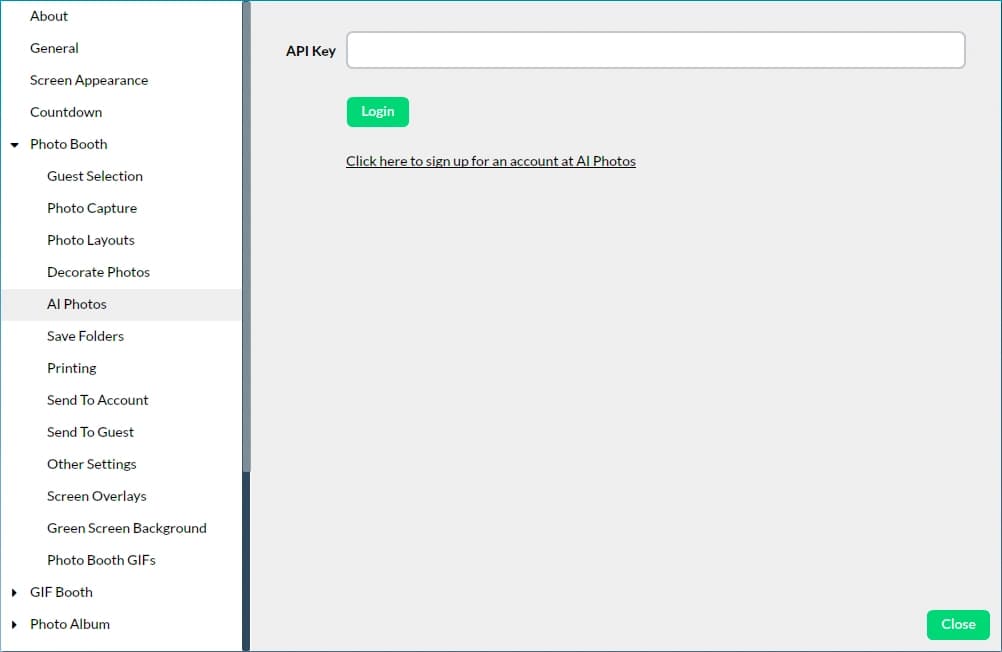
Create your account, then copy your API key from the Account Dashboard and paste it back into the API Key field in Sparkbooth. Sparkbooth users get 5 free credits the moment the account is created.
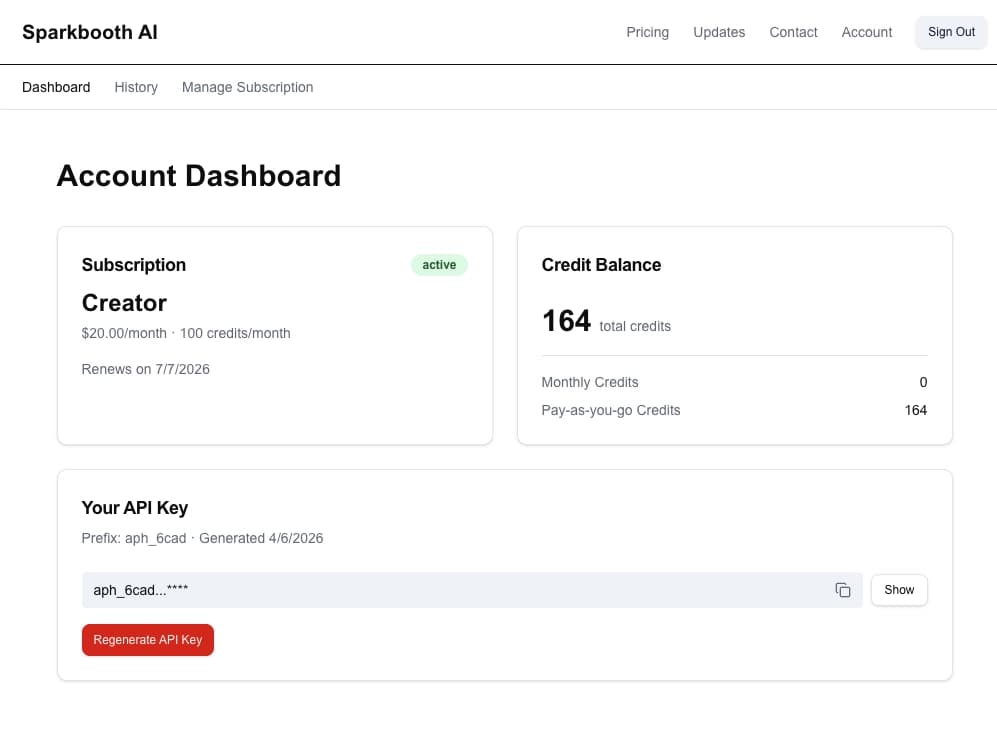
How do I switch which AI Photos account Sparkbooth uses?
Click the Logout button in the top-right of the AI Photos settings panel. That clears the saved API key and returns Sparkbooth to the Login screen, where you can paste in a different key. Your prompt list is preserved — only the account credential is reset.
Managing prompts in Sparkbooth
How do I turn AI Photos on or off?
Use the Enable AI Photos checkbox at the top of the Photo Booth → AI Photos panel. When it's off, photos are saved straight from the camera with no AI transform — useful if you want to temporarily pause AI transforms without removing your API key or prompts.
What do the two fields on each prompt row do?
Each prompt row has two text fields:
- Title (top, single line) — the short name guests see when picking a prompt (e.g. “Pirate”, “Animated Character”). Only visible if you've enabled the guest prompt picker.
- Prompt (bottom, multi-line) — the instructions sent to the AI model. This is the text that actually shapes the output.
How do I add a new prompt?
Click the + button in the bottom-right corner of the AI Photos settings panel. A new empty row is added to the end of the list; fill in the title and prompt text, then optionally upload or generate a preview image.
How do I assign a prompt to a specific photo?
In multi-photo layouts, prompts are matched to photos by order: the first prompt in the list runs on Photo 1, the second on Photo 2, and so on. The Photo 1 / Photo 2 / Photo 3 label on each thumbnail shows exactly which slot it will fill.
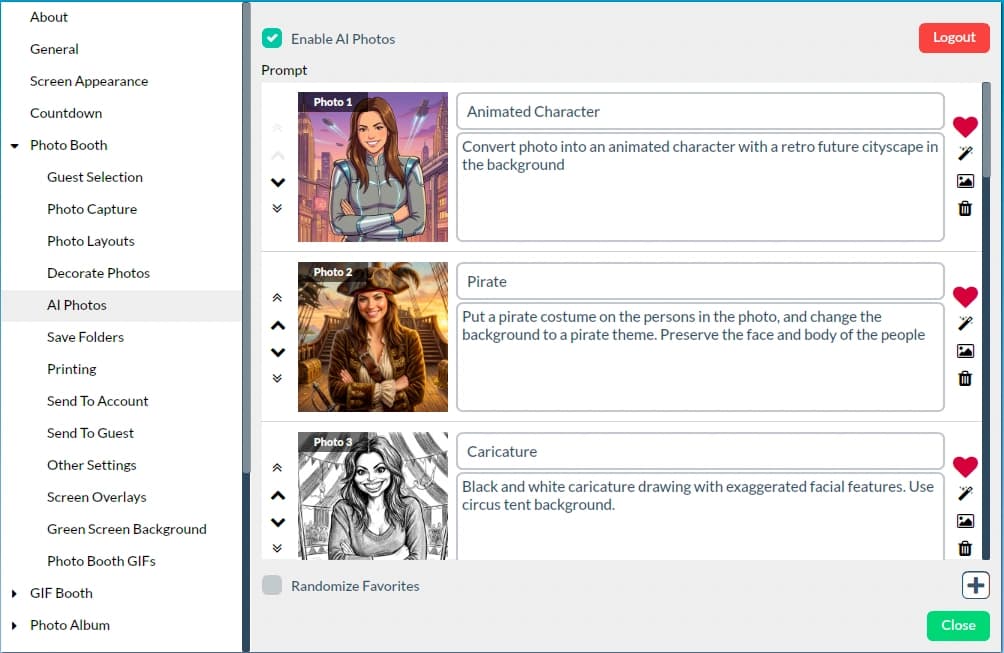
To reassign a prompt to a different photo, use the arrows on the left of the row to move it up or down: single arrows nudge it one position, double arrows jump it to the top or bottom of the list.
How do I delete a prompt?
Click the trash icon on the right side of the prompt row in Sparkbooth's Photo Booth → AI Photos settings. Deleting a prompt is local to your Sparkbooth setup — it doesn't affect your account or use any credits.
How do I use my own image as a prompt's preview?
Click the picture icon on the right side of the prompt row and choose an image file from your computer. The image you pick becomes the thumbnail guests see when selecting that prompt — useful if you already have a sample output you like, or if you want to use branded artwork instead of an AI-generated preview.
How do I generate a new preview image for a prompt?
Click the wand icon on the right side of the prompt row. Sparkbooth will send the prompt to the AI Photos service and replace the thumbnail with a freshly generated sample.
Heads up: generating a new preview consumes one credit from your account, just like a guest transformation would. Uploading your own image with the picture icon is free.
How do I randomize which prompt is used?
First, mark the prompts you want in the rotation by clicking the heart icon on each prompt row — a filled red heart means the prompt is a favorite. Then, at the bottom of the AI Photos settings, tick Randomize Favorites.
With Randomize Favorites on, Sparkbooth picks one of your favorited prompts at random for each photo instead of going through the list in order. Prompts that aren't favorited are skipped, so you can keep them in the list for occasional manual use without including them in the rotation.
How do I let guests pick a prompt at the booth?
In Sparkbooth, go to Photo Booth → Guest Selection and enable Change AI prompt screen. Guests will then see a picker before the photo runs, with a thumbnail for each prompt in your AI Photos list.
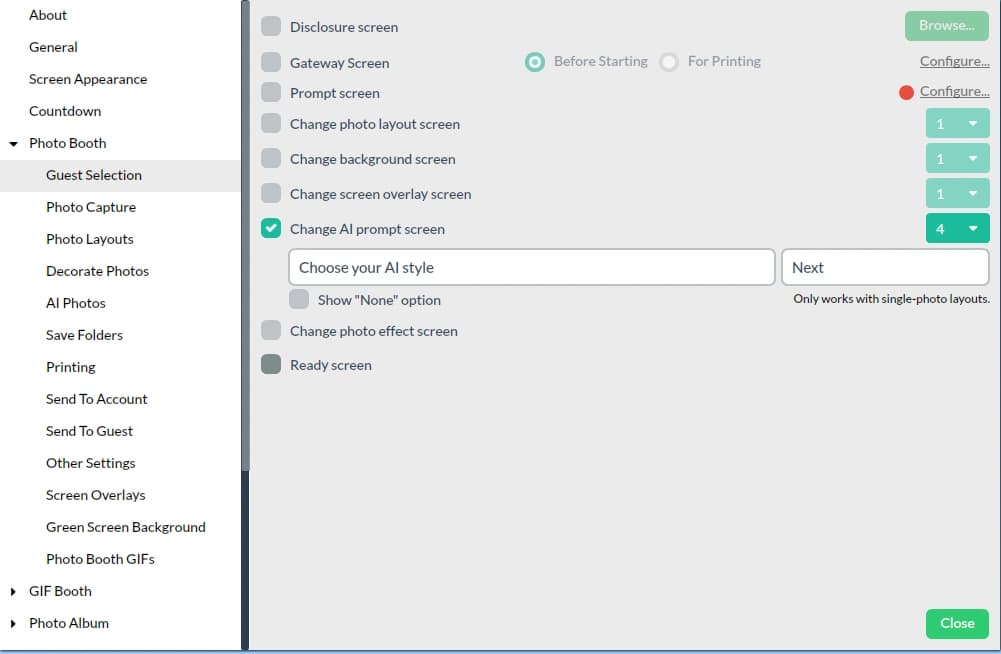
You can customize the heading (“Choose your AI style”), the button label (“Next”), the number of columns, and whether to show a “None” option that skips the transform.
Single-photo layouts only. The guest prompt picker is only available for one-photo layouts — multi-photo layouts always use the prompts in list order.
Writing prompts
Can I create my own prompts?
Yes. In addition to the built-in styles, you can write any custom prompt in the prompt text area for each row in Photo Booth → AI Photos. Whatever you put there is passed straight through to the model.
Keep prompts concrete and descriptive (the setting, lighting, outfit, art style). Short, vivid prompts almost always beat long ones.
How do I write prompts that preserve the face or pose?
The model is tuned to keep likeness recognizable across styles by default, so most prompts don't need to mention the face at all. If you want to be explicit, add a short phrase like:
- “preserve the subject's face and identity”
- “keep the same facial features”
- “maintain the original pose and composition”
- “same body position as the input photo”
Tips that help:
- Describe what you want to change (the outfit, the setting, the art style) and leave the face/pose alone unless you specifically want them changed.
- Avoid prompts that imply a different angle or full-body shot if your input is a headshot — the model has to invent anything outside the frame.
- Use a clear, well-lit input photo. The better the input, the better the likeness in the output.
Credits & billing
Do monthly credits expire?
Yes. Monthly subscription credits reset at the start of each billing cycle and do not roll over — any unused monthly credits are forfeited when your billing cycle renews.
Do pay-as-you-go credits expire?
No. Pay-as-you-go credits purchased separately never expire and remain in your account until you use them.
I have both monthly and pay-as-you-go credits — which are used first?
Monthly subscription credits are always consumed first. Your pay-as-you-go balance is only drawn down after your monthly allocation has been fully used for the cycle.
What if I run out of monthly credits before my cycle resets?
You can top up at any time by buying a pay-as-you-go credit package from the pricing page. Pay-as-you-go credits become available immediately and don't expire, so anything left over carries forward.
How do I cancel my subscription?
Sign in and go to Account → Manage Subscription, then click Manage Subscription. That opens the Stripe customer portal, where you can cancel the subscription, change plans, or update your payment method.
Cancellations take effect at the end of your current billing period — you keep access (and your remaining monthly credits) through the date your subscription would have renewed. Any pay-as-you-go credits you've purchased stay in your account and never expire, even after the subscription ends.
Results & refunds
The photo didn't come out the way I wanted. Can I get a credit refunded?
No. We don't issue refunds for individual transformations. The underlying AI model is operated by a third party and we have no control over the specific image it returns for any given prompt — results can vary even with the same input.
If a result isn't what you wanted, try running the transform again or adjusting the prompt — tweaks to wording often produce very different outputs.